
|
 |
 |
 |
 |
|
It was TAB in earlier versions?
though you can always make it anything you like by customizations.  
on the right context menu of all toolbars, right next to his mother ship Palettes

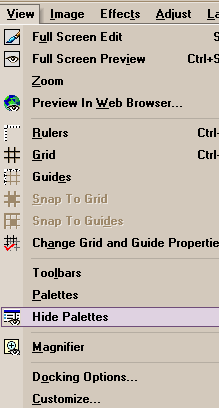 That happens if you are using a workspace that originated during the betas or it was customized away. We can do anything in the world to those menus during our customizations. including shoot off our own toes. To return to default, right click any toolbar and hit CUSTOMIZE. Hit the MENU tab and |
 This the fastest route to a 100% zoom. It's also a handy visual reminder when we aren't currently on a 100% but don't even know it. On our smaller images, the titlebar won't have enough room to list its zoom, and that readout is gone.  Some may wish to drag a window out to fit all the available workspace. However, everything comes at a price and this is no exception. PSP 8's newer more flexible zoom has drawbacks. Like those times when you need to know accurately and precisely what how your REAL image honestly looks. Whenever it isn't on 100% increments, it lies. Sometimes it's only a little lie that won't matter. Just beware. Other times it'll stab you in the back, steal your wife, and sell your car when you aren't looking - so consider yourself warned. Learn to see what you've got, always seek truth, and learn to recognize those differences. Below is the exact same image at different zoom levels Left 80%, middle 100%, and right is 120% Note the differences in quality 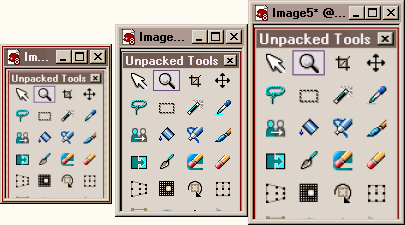 In reality all three of these images are absolutely identical! Note nothing is visible to indicate what the heck is happening or what zoom level you are viewing. Which is the norm on smaller image windows. quickly gets you back onto viewing the real truth of things.  If you do all your zooming with your mouse wheel (highly recommended pal, highly recommended) then you won't ever even see this actual size control that appears on the tool options palette. Which is also not good, not good, not good. If you are currently on any zoom level that isn't ending in a pair of zeros (like 100% 200% 300%)? Better watch your wallet. Some lying sharks and weasels are circling your raft brother. Don't fall in. Find yourself suddenly asking, "What the hell happened to my text?"? You probably fell in.
custom HOT BUTTON grouping AKA the CYAing HOTTIE TRIO. :) Install the more truthful "actual size" button Locate him in a very prominent location! 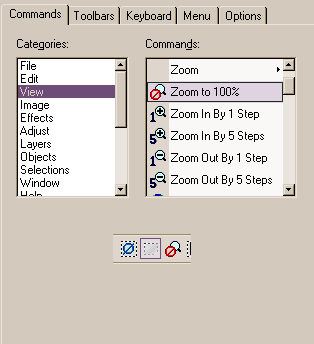 Then train yourself to watch him like a hawk! While you are in here, also go into the selections category and grab your Hide Marquee and Select None buttons too. These three guys will constantly light up and/or go dark to keep us regularly apprised of the true state of things. Which is a mighty good thing. They save us from shooting our toes, and prematurely using up those profanity quotas too early in the project. Keep doing it the hard way, or get used to monitoring these three HOT buttons, who live front and center on your toolbar. If he's dark, you see a truthful 100% zoom. If he is lit up and active - he may well be in one of those lying through his teeth, every man for himself so good luck sucker, intermediate zoom ratios. You should only trust 100% increments. People whined for this feature and we've got it. In all its glory and all its gotchas. If you cannot see a zoom listing on the image titlebar, you cannot trust what you are seeing is the real deal. Always hit the Actual Zoom button to confirm.
As you click on successive points the tool will attempt to find the correct edge between the click points. If it is not doing what you want, press Delete to remove as many click points as needed and try again, clicking closer together this time. If while you hold Alt you continue to click point after point, the tool will behave like the regular Point to Point selection tool and will join the click points with straight line segments. If while holding Alt you drag rather than clicking, the tool will behave like the regular Freehand selection tool. Thus, if the tool ever does not follow exactly the object edge you want, you can override its behavior temporarily with Alt to manually specify the edge you want and then just go back to the automatic mode by releasing Alt. Note: this is not a Magnetic Lasso. The selection always goes exactly through your click points, so place these carefully. Range is a control that determines how far from the click points the tool searches for the object edge. When your edge consists of multiple edges (e.g. a highlight, the edge proper and a thin shadow all close together) use a smaller range. If your edge is curved and weaves about a lot between click points, use a larger range. Use the Smoothing control to reduce "bumpiness" or small excursions in the position of the selected edge. The selection may be feathered and/or antialiased. |
 Copyright
Camp Ratty ©2003 All Rights Reserved
Copyright
Camp Ratty ©2003 All Rights Reserved